
How to set up an authenticator app on iPhone for 2FA
Turn on two-factor sign-in in the site's security settings, then scan its QR code or type its setup key into an authenticator app such as Auth Kit. Enter the code the app shows (usually six digits) to finish, and save the recovery codes the site gives you, so you can sign in if you lose the phone.
Step 1. Turn on two-factor sign-in
In the site's security settings, look for two-factor authentication and choose an authenticator app as the second step. The site then shows a QR code and a setup key.
Step 2. Add the account to your authenticator app
Apple's own option comes first. Apple's guide, Automatically fill in one-time verification codes on iPhone, says iPhone can generate these codes without SMS messages or an extra app. You can set one up by scanning the site's QR code or by entering its setup key, and the codes then fill in when the site asks for them.
If you prefer a separate app, Auth Kit works the same way. In Auth Kit, add a new code and scan the QR code. If you cannot scan it, type the setup key instead. Auth Kit keeps the secret in Apple Keychain and makes the codes on your iPhone, with no account to create.
Step 3. Enter the code to finish
Type the code the app shows for that account into the site. The site checks it and turns two-factor sign-in on. Type it before the countdown ends, because a new code usually appears every 30 seconds.
Step 4. Save the recovery codes
Save the recovery codes the site gives you in a safe place outside the phone, such as a password manager you trust. If you lose the phone, a recovery code is how you get back in.
How the codes work
An authenticator app and the site share a secret key once, when you scan the QR code. Both sides count the same 30-second time steps from the Unix epoch, combine the step with the key using a keyed hash, and show the code. RFC 6238 is the open standard for this. Six digits, a 30-second step, a starting time of zero (the Unix epoch) and HMAC-SHA1 are its common defaults, and a setup link can name other values. Auth Kit reads TOTP codes with SHA-1, SHA-256 or SHA-512, 6 or 8 digits, and the period given in the setup link. The same inputs give the same code, so the codes work without a network connection on the phone.
The demo below uses public demo secrets, not your account. It works out the codes in your browser the same way an authenticator app does.
Demo, not your account. The codes below are worked out in your browser from public demo secrets, the same way an authenticator app does it.
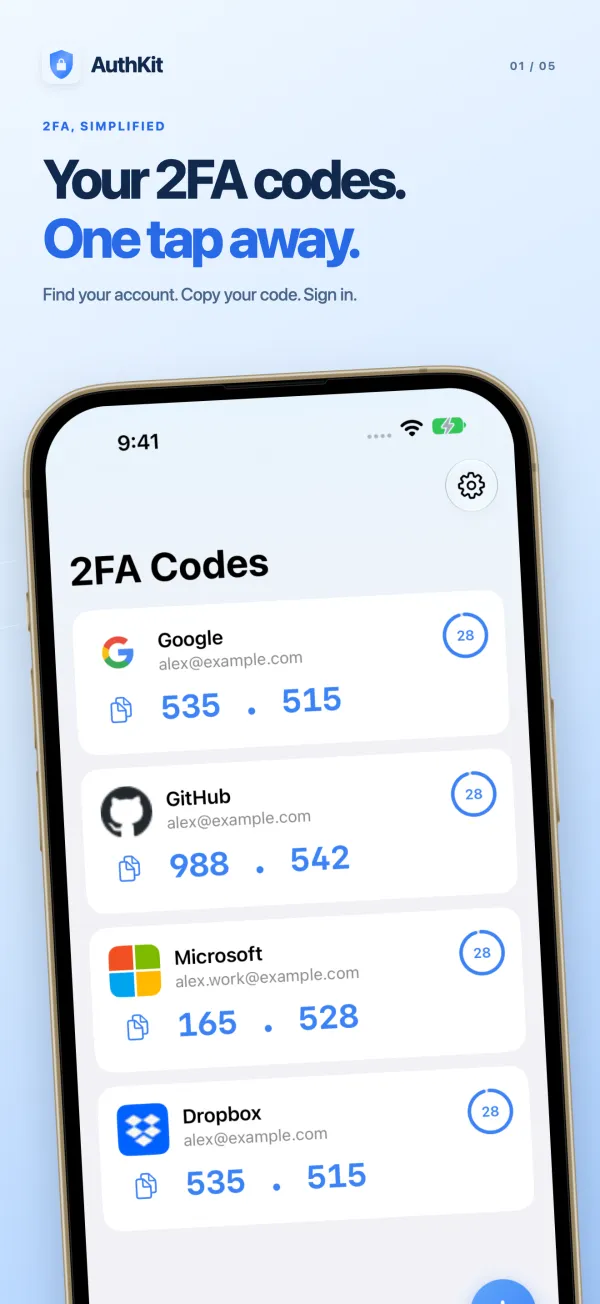
2FA Codes
How this differs from SMS codes and passkeys
SMS codes are sent by text message over the phone network. NIST's current guidelines, SP 800-63B-4, restrict the use of the phone network (PSTN) for out-of-band authentication, which covers SMS and voice. Email is not allowed for out-of-band authentication under the same guidelines.
A passkey works differently. Apple's security page says the device creates a unique key pair for each account, the public key is stored on the server, and the private key stays on your device. Face ID or Touch ID unlocks it.
When this will not work
- The phone's clock is far off. Both sides use the time to make the code, so a wrong clock gives a code that does not match. Turn on automatic date and time.
- The code is typed late. Services accept codes only within a short window around the current time, so a late code can be refused.
- You lost the phone and have no recovery codes. Then you may have to contact each site to recover the account, so save recovery codes at setup.
- The site does not offer an authenticator app. Then you may only have SMS or a passkey, which is how that site chose to protect the account.
How Auth Kit helps
Auth Kit is an authenticator and password vault for iPhone, iPad and Mac, with 2FA codes on Apple Watch. It keeps the secrets in Apple Keychain, and it needs no account to create. The free plan includes one TOTP code, and Pro removes the limit. Auth Kit also stores passwords, passkeys and secure items in one place.
Exports include your passwords and 2FA codes. Passkeys, other item types and attachments are not included, so keep a second way back into your accounts, such as the recovery codes above.
Sources
Checked 2026-11-15. Outside pages only; facts about our apps come from their landing pages.