
How to control an LG Smart TV with your iPhone
LG's own ThinQ app is the first option. Sign in with an LG account, add your TV from the Add a Device menu, and keep both devices on the same network. If you want one remote app for several brands, AS Remote controls LG webOS TVs over Wi-Fi too.
Before you start
LG's support page says both the smartphone and the TV must be on the same network, and for a Wi-Fi connection both must be on the same 2.4 GHz network. If your router has separate 2.4 GHz and 5 GHz names, join the 2.4 GHz one on both devices.
You also need an LG account to sign in to the ThinQ app.
Step 1. Install ThinQ and sign in
Install the LG ThinQ app on your iPhone and sign in with your LG account. LG's page notes that you have to link your account for managing IoT devices. LG also suggests a Google or Amazon account if you want voice control through Google Assistant or Alexa.
Step 2. Add the TV
In the ThinQ app, press Add a Device, select TV from the product list, then select your TV from the list of available devices.
Step 3. Check the network if the TV is missing
If the TV does not appear, check that the TV is switched on and that your iPhone is on the same 2.4 GHz network as the TV. Then try the Add a Device steps again.
Demo, not a real TV. A simulated TV and remote show how AS Remote's remote screen works.
A simulated TV. Use the remote below: move around, press OK, change the volume, open an app, switch it off. AS Remote sends the same kind of commands to a real TV over Wi-Fi.
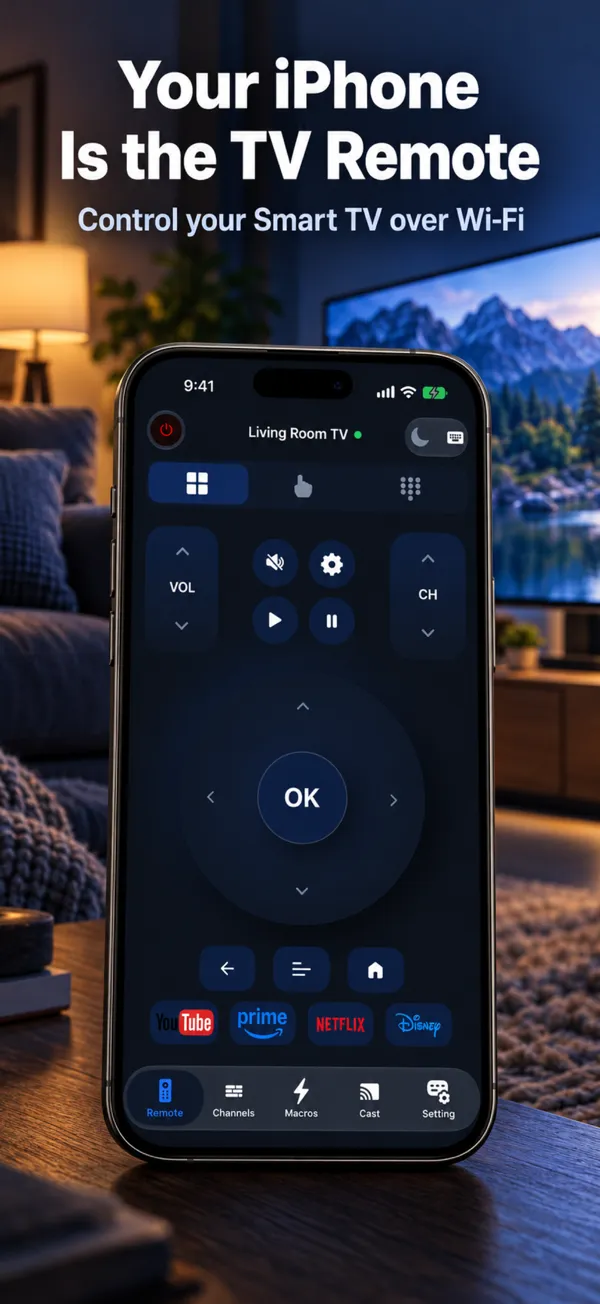
The remote screen, from the App Store listing.Try the D-pad, OK, volume and the app buttons.
Step 4. Use the remote and check the result
Once the TV is added, select its device card in the ThinQ app and tap Remote Control to use it as a remote. LG says power-on from the app needs webOS 3.5 or later, and on an iPhone it works over Wi-Fi only. On webOS 6.0 TVs the setting is under All Settings, Devices, External Devices, TV On With Mobile. The demo below shows how AS Remote's remote screen works, and it is a simulated TV, not a real one.
Check the connection
Turn the volume up and down with the app to confirm the connection works. AS Remote's free version does the same, so you can test the connection before you pay for Pro.
When this will not work
- The iPhone and TV are on different networks, or the iPhone is on the 5 GHz band while the TV uses 2.4 GHz.
- The TV and the phone are signed in to different LG accounts.
- The TV is switched off or unplugged. Wi-Fi control needs the TV to be online.
- The brand or model is not on AS Remote's list. Check the App Store listing for your model before you pay for Pro.
How AS Remote helps
AS Remote controls LG webOS TVs over Wi-Fi, with no IR blaster and no extra hardware. The free version finds and connects to your TV and works volume and mute, which is enough to test that the connection works.
AS Remote Pro unlocks the full remote, text input, screen mirroring, casting, channels and macros. Mirroring may not work on every LG model, so test it on your own TV first.
Sources
Checked 2026-11-15. Outside pages only; facts about our apps come from their landing pages.